Integrating AI agents
AutoSat supports the industry standard Model Context Protocol (MCP), allowing compatible AI agents to access data from your workspaces and assist operations in AI powered workflows. AutoSat does not feature any AI capability embedded within the product. The choice to integrate an AI agent is entirely within your control.
Once connected, you can ask your agent questions like:
- “What’s the best pass for
my-satover the next 24 hours?” - “Is
my-satreachable right now, and what’s its latest battery voltage?” - “Summarize the console activity for
my-satsince yesterday’s pass.” - “Plot
battery_voltageformy-satover the last week.”
MCP access requires a plan that includes API access (Pro or Enterprise). If you don’t see MCP connections in your workspace settings, check your organization’s plan.
What an agent can do
AutoSat’s MCP access is read only. An agent can look up information about your workspace, but it cannot send commands, run workflows, or change any configuration.
| Tool | What it does |
|---|---|
get_workspace | Reports the workspace, organization and permission level the connection is using. |
list_satellites | Lists the satellites in the workspace, with their most recent TLE. |
list_ground_stations | Lists the ground stations in the workspace. |
get_upcoming_passes | Lists upcoming passes, soonest first, optionally filtered by satellite and/or ground station. |
get_pass_polar_plot | Renders the polar az/el plot of a pass — the same chart shown in the console. |
get_satellite_status | Reports live status: ping reachability, ground station agent connectivity and latest telemetry. |
get_telemetry_history | Retrieves recorded values over time for a telemetry field, optionally within a time range. |
get_console_logs | Retrieves recent console history: commands sent, their output, workflow events and received packets. |
Satellites can be referred to by their slug (e.g. my-sat) or UUID, so you can name them naturally
when talking to your agent.
Connecting an AI agent to AutoSat
To connect a compatible AI agent you will need to provide it with your workspace’s MCP endpoint. MCP access is configured per workspace and uses the same permissions as the user who authorizes the connection.
1. Find your workspace’s MCP endpoint
-
Open the workspace you want to connect and go to Settings.
-
Select MCP connections.
-
Copy the URL shown under Workspace MCP endpoint. It looks like:
https://example.autosat.space/mcp/workspace/unistar

Each workspace has its own endpoint. To give an agent access to more than one workspace, add a separate connection for each.
2. Add the endpoint to your AI agent
How you add an MCP server depends on your agent. AutoSat uses the Streamable HTTP transport with OAuth sign-in, so any client supporting remote MCP servers can connect directly — no API keys or local proxy required. Instructions for some popular agents follow; menus change from time to time, so check your agent’s own documentation if a step doesn’t match what you see.
- Claude
- Claude Code
- ChatGPT
- GitHub Copilot
- Codex
- Other agents
In claude.ai or Claude Desktop:
- Open Settings → Connectors.
- Choose Add custom connector.
- Give it a name (e.g.
AutoSat – Operations) and paste the MCP endpoint as the URL. - Select Connect.
claude mcp add --transport http autosat https://example.autosat.space/mcp/workspace/unistar
Then run /mcp inside Claude Code and choose Authenticate for the autosat server.
Custom MCP servers are added to ChatGPT on the web as plugins:
- Open Plugins, select Add in the top right corner, then choose Add custom MCP server.
- Give it a name (e.g.
AutoSat – Operations) and, under Connection, paste the MCP endpoint as the server URL. - Choose OAuth for authentication.
- Review the warning, select I understand and want to continue, then Create as a plugin.
- Install the plugin. When ChatGPT asks you to connect, sign in to AutoSat and approve the request.
To use AutoSat in a conversation, type @ in the message box and choose the plugin.
Custom MCP servers aren’t available on every ChatGPT plan, and on Business and Enterprise workspaces an admin can restrict which plugins you can add. If you can’t find the option, check with your ChatGPT workspace admin.
In Visual Studio Code with GitHub Copilot:
- Open the Command Palette and run MCP: Add Server.
- Choose HTTP, paste the MCP endpoint as the URL, and name it
autosat. - Choose where to save it — in your user configuration for just you, or in the workspace’s
.mcp.jsonto share it with your team. - When VS Code starts the server, it opens your browser to sign in to AutoSat. Approve the request.
The saved configuration looks like this, and can also be written by hand:
{
  "servers": {
    "autosat": {
      "type": "http",
      "url": "https://example.autosat.space/mcp/workspace/unistar"
    }
  }
}
It contains no credentials — everyone who uses it signs in to AutoSat as themselves. AutoSat’s tools are then available in Copilot Chat; select Configure Tools in the chat input to see them.
On Copilot Business and Enterprise plans, an organization or enterprise owner must enable the MCP servers in Copilot policy first. It is off by default.
Add AutoSat and sign in from the command line:
codex mcp add autosat --url https://example.autosat.space/mcp/workspace/unistar
codex mcp login autosat
codex mcp login opens your browser to sign in to AutoSat. Approve the request, and AutoSat’s
tools are available in your next Codex session.
Codex currently doesn’t prompt you to sign in to an MCP server that needs it. Instead, AutoSat’s
tools are silently left out of the session, and Codex may not realize why. Run codex mcp login autosat first.
If you only use Codex through another app, you may not have the codex command installed. Install
the Codex CLI, or use the copy bundled with that app.
Look for an option to add a “remote”, “HTTP” or “custom” MCP server and provide the endpoint URL. If the agent asks how to authenticate, choose OAuth. Consult your agent’s documentation for details.
All of AutoSat’s tools are marked read-only, so agents that ask for approval before actions that make changes generally won’t ask before calling them.
3. Authorize the connection
When the agent first connects, a browser window will open to AutoSat:
- Sign in to AutoSat if you aren’t already.
- Review the request. AutoSat shows which app is asking for access, and to which workspace and organization, along with the account it will act as.
- Select Approve to grant access, or Deny to refuse.
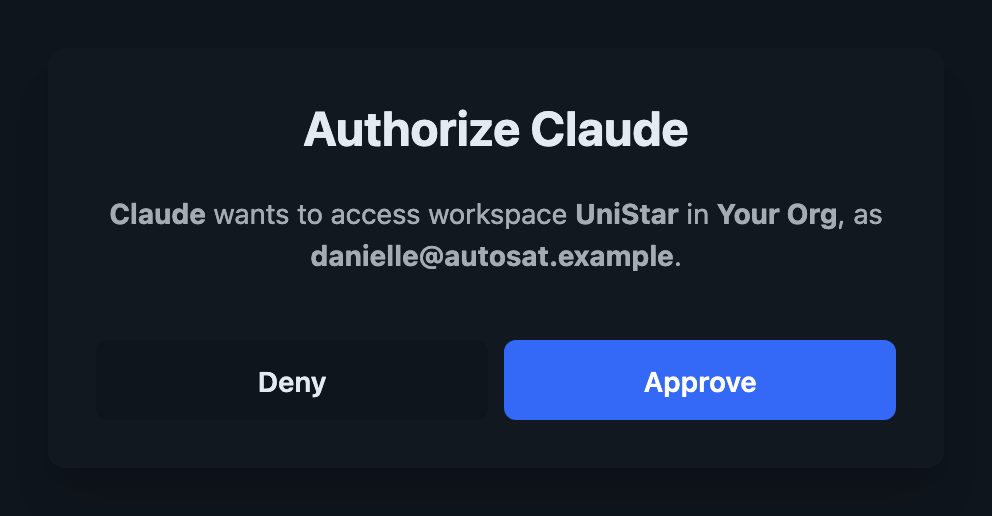
You’ll be returned to your agent, which can now use AutoSat’s tools. A good first check is to ask it “Which AutoSat workspace are you connected to?”.
Permissions and data access
An agent acts on your behalf, and sees only what you can see in the workspace:
- A connection is bound to the single workspace it was authorized for. It cannot reach other workspaces, even ones you have access to.
- Restricted users (such as customer roles) only see console activity for the subsystems they have been granted access to.
- Telemetry is only available if your account can read telemetry in the workspace.
- If your access to the workspace is removed, or your organization’s plan no longer includes API access, the connection stops working.
Data returned by AutoSat — telemetry, console logs, pass predictions — is sent to your AI agent and its provider. Make sure your use of AI tools complies with your organization’s data handling policies before connecting.
Managing connections
The MCP connections page in workspace settings lists the apps that have been authorized to access the workspace.
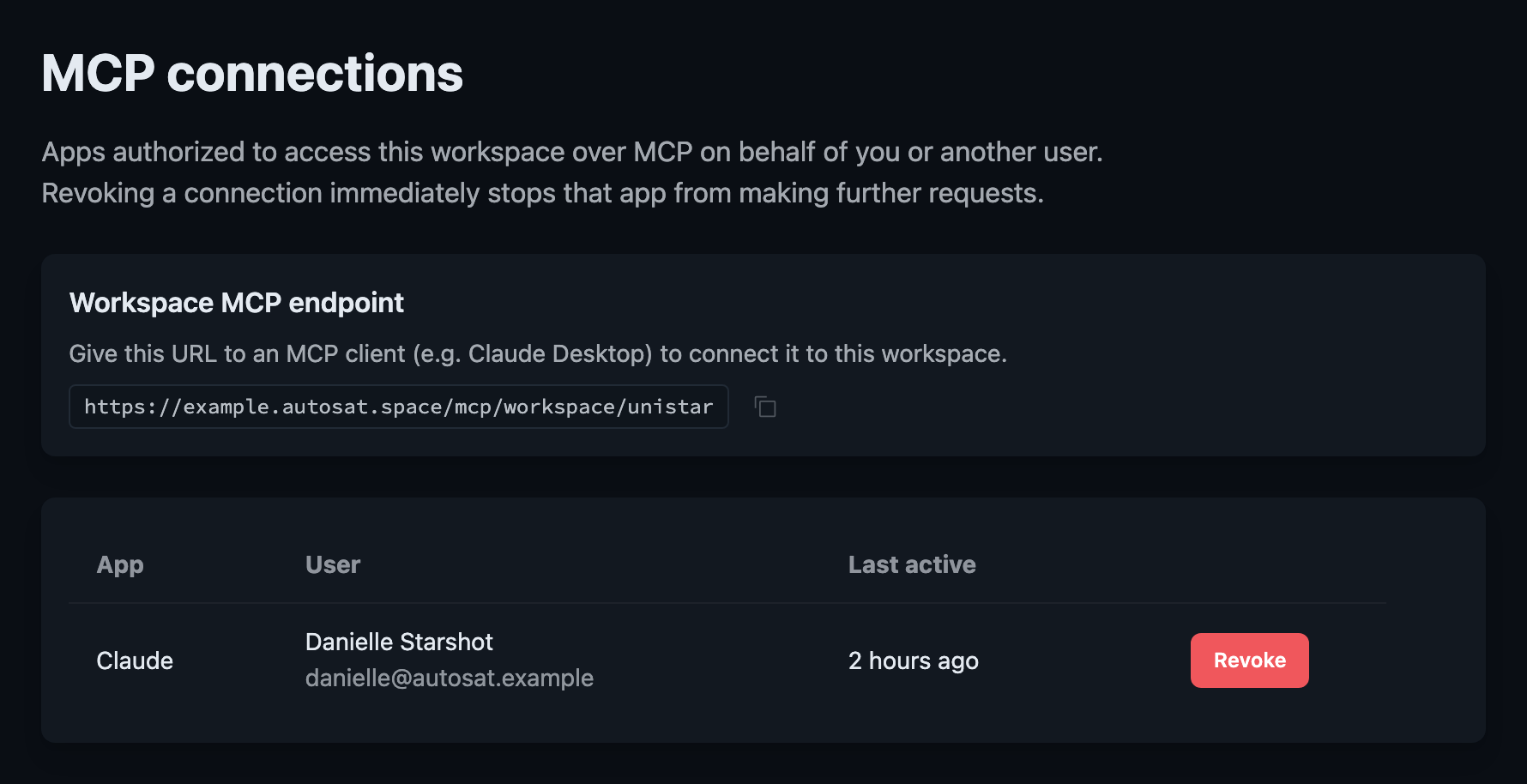
- Users see the connections they have authorized themselves.
- Workspace admins see every user’s connections.
Select Revoke next to a connection to remove it. The app immediately loses access and will need to be authorized again before it can reconnect.
Connections stay signed in while they’re in use. If one is left unused for an extended period (around 90 days) you’ll be asked to authorize it again.
Troubleshooting
I can’t find MCP connections in settings.
Your organization’s plan may not include API access. Contact your organization’s administrator.
The agent says it’s unauthorized, or keeps asking me to sign in.
The connection may have been revoked, or your access to the workspace changed. Remove the server
from your agent and add it again to re-authorize.
The agent can’t see any AutoSat tools.
It most likely hasn’t signed in. Most agents prompt you to sign in when they first connect; if
yours doesn’t, look for an option to authenticate or log in to the server. For Codex, run
codex mcp login autosat.
The agent reports “Too many requests”.
Each connection is limited to 60 requests per minute. Wait a minute and try again — interactive use
rarely reaches this limit.
The agent can’t find a satellite or telemetry field.
Ask it to list the satellites in the workspace first, or to check the satellite’s status to see
which telemetry fields currently have values. Confirm it’s connected to the workspace you expect
using get_workspace.