Workflows
Workflows run routine operations for you, so a pass can go ahead with nobody on console. A workflow can send commands around a pass, react when telemetry changes, ask an operator to approve the next step, and post to Slack.
For example, you can build workflows to:
- Send your housekeeping commands two minutes after each pass starts.
- Post to Slack ten minutes before each pass over a ground station.
- When battery voltage drops below a limit, post to Slack, wait for an operator to approve, then send a command to shed load.
How a workflow runs
A workflow starts with a trigger, then follows its steps in order. There are four kinds of step:
| Step | What it does |
|---|---|
| Trigger | Starts the workflow: at a pass, on a telemetry change, or by hand. |
| Wait | Pauses until something happens, such as a pass or an operator approval. |
| Condition | Checks a value. If the check fails, the workflow stops there. |
| Action | Sends commands or posts to Slack. |
Each time a workflow starts, AutoSat creates a run, which records each step and its result. A run keeps the version of the workflow it started with, so your edits only change later runs.
A run stops early if a condition fails, an operator rejects an approval, an action fails, or a step runs out of time. Each wait and action has a Timeout, which you can change. To let a workflow carry on after an action times out, select Continue with the next step if this action times out on that step.
Build a workflow
You need to be a workspace admin to build workflows.
- Click Workflows in the sidebar, then click New workflow.
- Click the title to name the workflow.
- Under Choose a trigger, pick how the workflow starts, and fill in its settings.
- Add the waits, conditions and actions you need, in the order they should happen.
- Click Save. AutoSat saves the workflow as Disabled, so it won’t run yet.
- Click Enable. AutoSat checks every step before it enables the workflow.
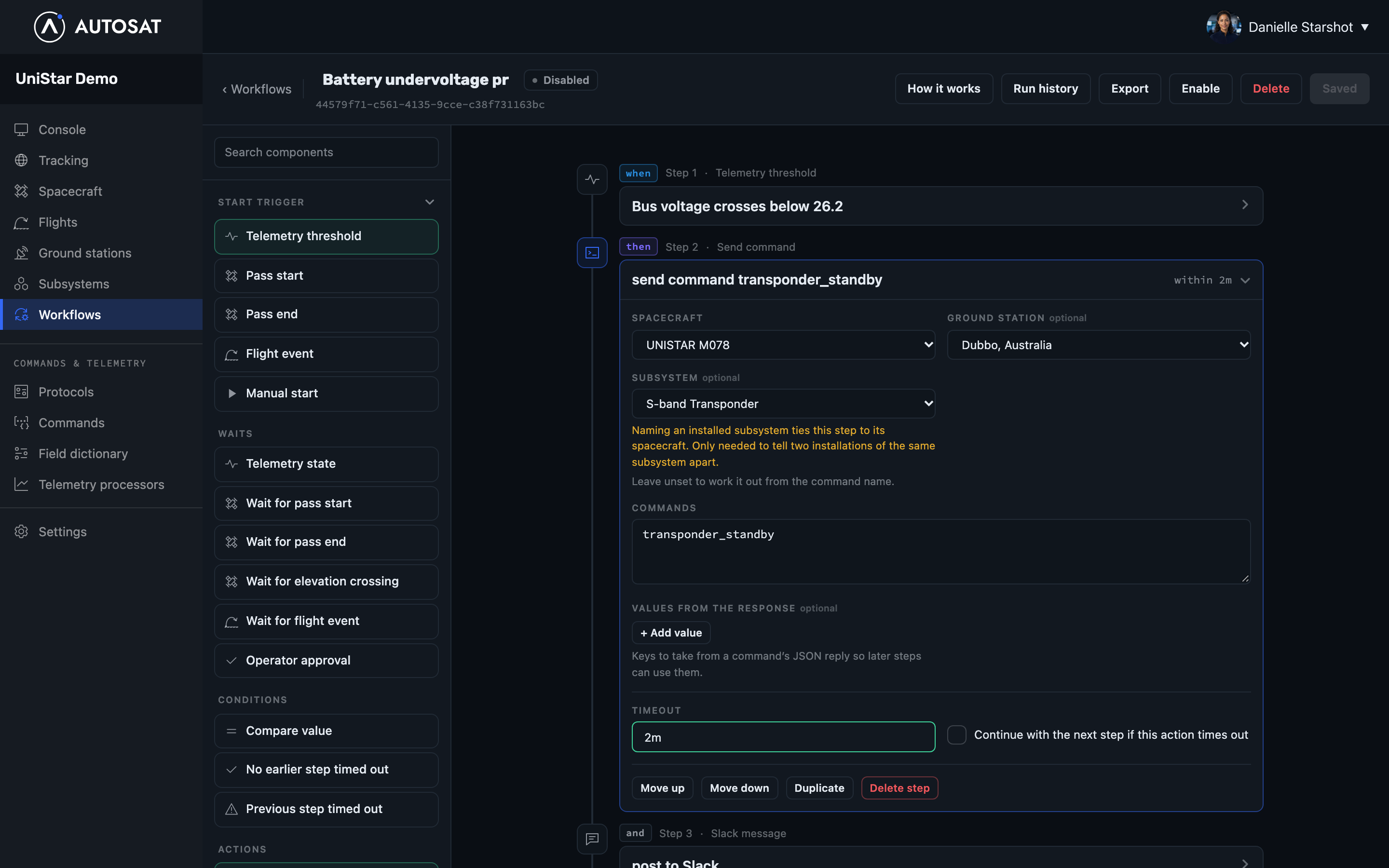
To start a workflow that uses Manual start, open it from the Configurations list and click Start now.
To copy a workflow to another workspace, open it and click Export. Then, in the other workspace, click Import on the Workflows page and choose the file.
Triggers and steps
A workflow can start with one of these triggers:
- Pass start or Pass end: at a set time before or after a pass. You can limit it to one spacecraft or ground station. Set a Minimum peak elevation or Minimum duration to skip passes that are too low or too short.
- Telemetry threshold: when a telemetry value crosses a limit. Set a Cooldown so a value that hovers around the limit doesn’t start the workflow again and again.
- Flight event: at the expected launch, actual launch or end of a sub-orbital flight.
- Manual start: when an admin clicks Start now.
Later in the workflow, you can add these steps:
- Wait for pass start, Wait for pass end and Wait for elevation crossing: pause until the next suitable pass reaches that point. A pass that’s too low or too short doesn’t end the wait; it carries on waiting for the next one.
- Telemetry state: pause until a telemetry value matches. If it already matches, the workflow carries on straight away.
- Wait for flight event: pause until a sub-orbital flight reaches a launch or end event.
- Operator approval: pause until a workspace admin approves or rejects.
- Compare value: carry on only if a value matches. Unlike Telemetry state, it checks once and doesn’t wait.
- No earlier step timed out and Previous step timed out: choose what happens after an action that was allowed to time out.
- Send command: send one or more commands and wait for each reply.
- Slack message: post a message to a Slack channel through an incoming webhook.
Times and offsets
Enter times, such as a Timeout or Cooldown, in days, hours, minutes and
seconds: 90s, 10m or 2d14h37m22s.
Pass and flight steps take an offset from the event. A negative offset means
before it and a positive one means after it. For example, -10m from pass
start runs ten minutes before the pass starts, and +2m from pass end runs two
minutes after it ends.
Use one workflow for all your spacecraft
The trigger sets the spacecraft, ground station and pass for the rest of the run. When a later step is set to From current event, it uses those, so one workflow can handle every spacecraft and ground station in your workspace.
If a later wait, such as Wait for pass start, picks up a different pass, the steps after it use that pass’s spacecraft and ground station.
To always use the same spacecraft, ground station or subsystem in a step, choose it by name instead.
Use values from earlier steps
Later steps can use values from earlier in the run:
- A Telemetry threshold or Telemetry state step provides the value it saw.
- A Send command step provides values from the command’s JSON reply. List the keys you need under Values from the response.
Compare value only offers values from steps that come before it. To use a value in a command or Slack message, add a placeholder to its text, as described below.
Placeholders
A placeholder is a value in ${…} that AutoSat fills in when it sends a
command or a Slack message. You can change how the value looks and give text to
use when there’s no value:
| Add | To | Example |
|---|---|---|
|oneDecimal | Show a number to one decimal place | ${trigger.value|oneDecimal} |
|duration | Show a number of seconds as a duration, such as 9m42s | ${trigger.durationSeconds|duration} |
:- and text | Use that text when there’s no value | ${groundStation.name:-any station} |
You can use both, as in ${trigger.value|oneDecimal:-unknown}.
In commands
Placeholders work in Execution commands. Put them in the command’s Executable or Args on the Commands page, and AutoSat fills them in each time it sends the command, from the console or from a workflow. Protobuf commands don’t use placeholders.
| Placeholder | Value |
|---|---|
${arg(name)} | The value of the command’s name argument |
${satellite.name}, ${satellite.satcatId} | The spacecraft receiving the command |
${satellite.telemetry.<field>} | The spacecraft’s latest reading of a telemetry field |
${subsystem.telemetry.<field>} | The latest reading of a field for the command’s subsystem |
${groundStation.name} | The ground station sending the command |
${workspace.name} | The workspace |
${context.<key>} | In a workflow, a value from an earlier command’s reply |
In a workflow, the spacecraft, ground station and subsystem are the ones the Send command step uses when it runs.
You can also put a placeholder in an argument you type in a Send command
step, such as set_mode ${context.mode}. AutoSat fills it in where the command
uses that argument through ${arg(…)}.
If a placeholder in a command has no value and no :- text, AutoSat leaves it
as you wrote it.
In Slack messages
A Slack message step can Start from one of these examples, or from a Custom message:
- Pass approaching: the spacecraft, ground station, AOS and LOS times, peak elevation and duration, with a link to the console.
- Telemetry alert: the telemetry field and value that started the run, with a link to the console.
- Approval required: a link to the run, for a message just before Operator approval.
You can change the example’s text. To go back to it, click Reset to example.
| Placeholder | Value |
|---|---|
${satellite.name}, ${satellite.satcatId}, ${satellite.slug} | The current spacecraft |
${satellite.pingState.reachable} | true if the spacecraft is reachable, or false |
${groundStation.name} | The current ground station |
${workspace.name}, ${workspace.slug} | The workspace |
${baseUrl} | Your organization’s AutoSat address, for making links |
${run.workflowName}, ${run.url} | The workflow’s name, and a link to this run |
${trigger.…} | A value from the trigger that started the run (below) |
${context.<key>} | A value from an earlier command’s reply |
Slack messages have two more formats for times. Each reader sees the time in their own time zone:
| Add | To show | Example |
|---|---|---|
|slackDateTime | The date and time | ${trigger.aosAt|slackDateTime} |
|slackRelative | How long ago, or how long until | ${trigger.occurredAt|slackRelative} |
Trigger values
Each trigger provides these values to Slack messages and Compare value:
| Trigger | Values |
|---|---|
| Every trigger | trigger.occurredAt: when the event happened |
| Pass start, Pass end | trigger.aosAt, trigger.losAt: when the pass starts and ends. trigger.maxElevationDegrees: its peak elevation. trigger.durationSeconds: how long it lasts |
| Telemetry threshold | trigger.value, trigger.previousValue: the reading after and before it crossed the limit. trigger.fieldName: the telemetry field |
| Flight event | trigger.expectedLaunchAt, trigger.actualLaunchAt, trigger.endAt, trigger.expectedDurationSeconds, trigger.flightStatus |
Approve a run
When a run reaches Operator approval, workspace admins can approve or reject it in two places:
- In the console, with the Approve and Reject buttons on the request.
- On the run’s page, under Operator approvals, where you can also leave a comment.
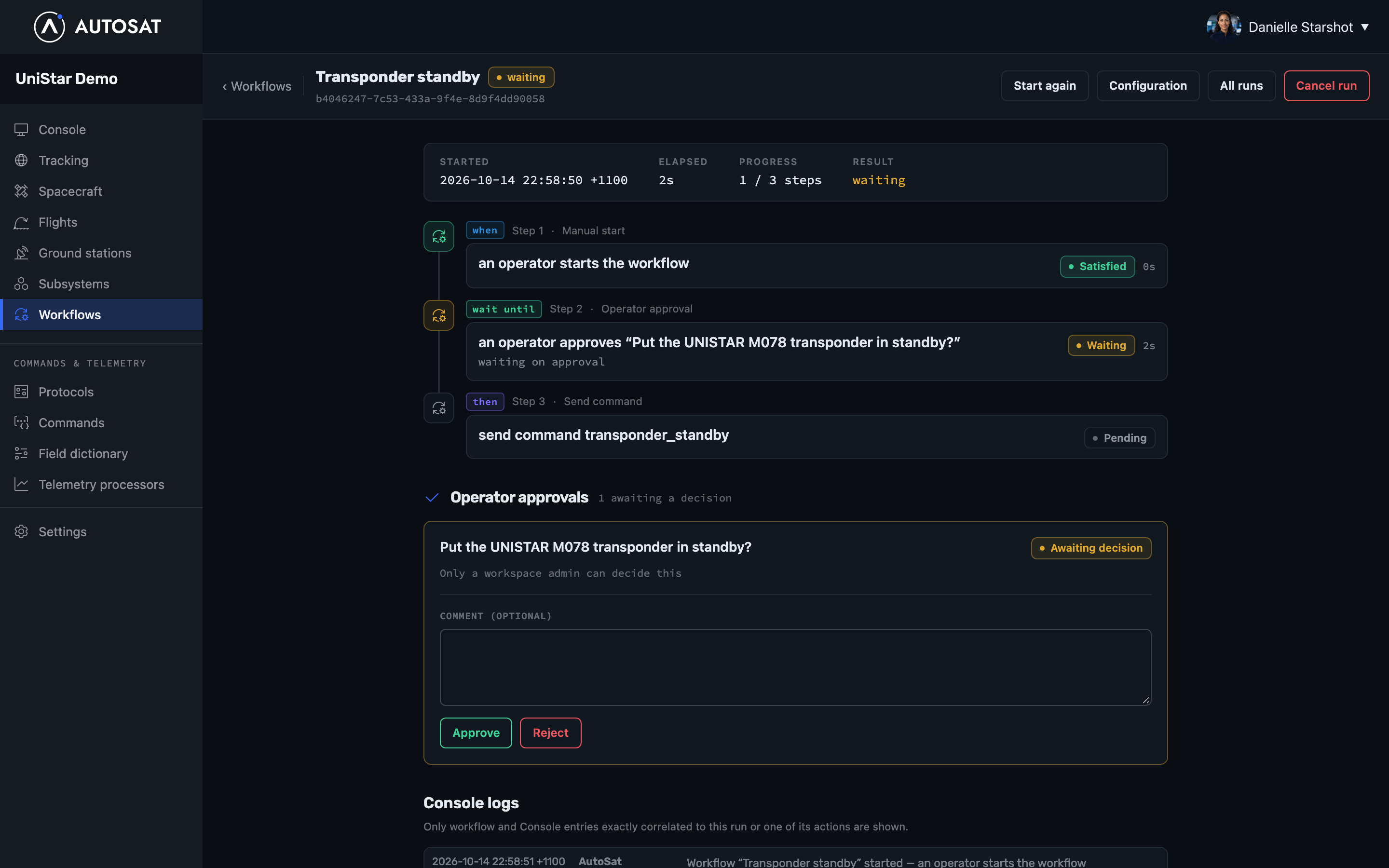
Rejecting stops the run. If nobody decides before the step’s Approval expires after time, the run stops.
Approval requests only appear in AutoSat. To let your team know one is waiting, put a Slack message step just before Operator approval.
Check what happened
Click Workflows in the sidebar, then click Runs. Runs that are scheduled or still going are listed above Now, and finished runs are listed below it. Click a run to see each step and what happened.
The Configurations list shows each workflow’s latest result, and when it’s next expected to start.
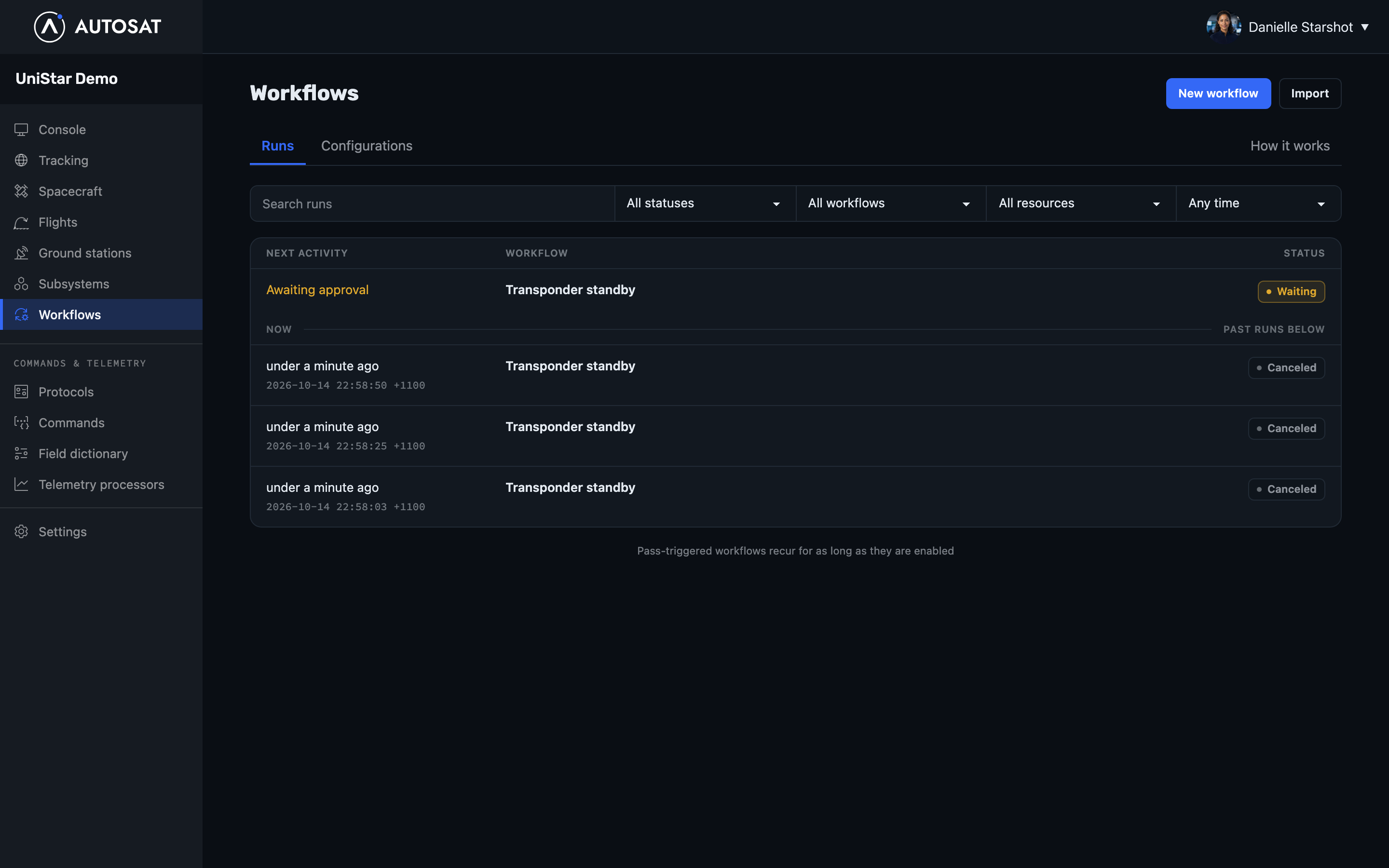
To stop a run that’s still going, open it and click Cancel run. AutoSat stops any waits, and the steps that already ran stay done.
If a workflow won’t enable
AutoSat highlights the step with the problem. The usual causes are:
- A step is missing a spacecraft, ground station, field or subsystem. Choose one, or set it to From current event.
- A condition uses a value that isn’t available yet. Move the condition after the step that provides the value.
- A step is in the wrong place. Some triggers can only start a workflow, and waits can’t.
If you change an enabled workflow so that it’s no longer valid, AutoSat saves it as Disabled. Fix the highlighted step, save, then enable it again.